How to disable automatic Windows restart dialog box after Windows Update

You know the scenario:

Windows XP updates automatically, and then a small box appears, which gives you two choices:

  1. Restart the computer! (now)
  2. Restart the computer! (later)

The problem is, even if you choose the ‘later’ option, the same annoying dialog box will pop-up after 10 minutes or so and you’ll have to dismiss it again, then again, then again… Finally, it will inform you, that the computer will be automatically restarted in 5 minutes, no matter what you do currently — the only choice you have at this moment is to postpone the restart a little, but the box will come again and again… And if you’re in the middle of something, and cannot restart right now, then what?

Luckily, there’s a solution, which I’ve found by accident, while browsing the Internet with no specific goal (you may read about this solution in a lot of places, actually). In short, your options are the following:

Option One

Stop the Automatic Update Service for the moment.

To do so, open the ‘run’ dialog box (shortcut: Windows key + R), type ‘cmd’ (without the quotes, of course) in it and hit ENTER. The command line will open.

Then use the following command to stop the service:

net stop wuauserv

Alternatively, you may also use:

net stop "automatic updates"

Or:

sc stop wuauserv

All of these do one and same thing: they stop the Automatic Update Service and with it, the annoying box, which prompts continuously you to restart the computer.

Then you may restart the computer at whatever time you like:-)

Note: The Automatic Update Service will be automatically started at the next Windows reboot, so don’t worry, you won’t disable the service itself!

Now, to the next option:

Option Two

You may disable this dialog box, prompting you to restart the computer after the Windows updates are applied, for good:)

How?

Again, open the ‘run’ dialog box, and type in it ‘gpedit.msc’, then hit ENTER. This will open the Group Policy editor.

Locate in it:

Local Computer Policy → Computer Configuration → Administrative Templates → Windows Components → Windows Update

There are two options there which will affect achieve the effect you’re after.

The first one is: No auto-restart for schedule Automatic Updates installations

Right-click it, select ‘Properties’, and configure it.

The second one is: Re-prompt for restart with scheduled installations

Right-click it, and set the time interval to something very long, like 720 minutes (12 hours).

Note: The maximum number of minutes you can set up there is 1440 minutes, or 24 hours, but this should be enough.

That’s it. No more annoying boxes popping up everywhere and urging you to restart NOW:)

What next?

Finally, let me quote Tim Rains on what might be the issues when disabling this auto-restart dialog box:

IMPORTANT: If you choose to configure your system not to reboot when a security update which requires a reboot is installed, you are taking a huge risk. The fixed code is not actually loaded (in memory) by the system until after the reboot. i.e. the old, vulnerable code is still running until a reboot is completed. If you do not reboot the system for whatever reason (you didn’t realize a security update was automatically installed, you want to wait for a regular maintenance window, you forget, you were on vacation, etc.) your system will still be vulnerable. You also risk system stability by delaying a required reboot. When some files that are in use are replaced but not loaded, and other files that are not in use are replaced, you can get into a mixed binary situation. Depending on the binary, there may be conflicts that cause system instability.

Also, here should be noted that if you have the Automatic Windows Update service disabled by default (System Properties → Automatic Updates → Turn Off Automatic Updates) and do your updates manually (via Microsoft Update or Windows Update), then this dialog box won’t bug at all you after updates are installed, because you have decided to install them manually.

Other interesting resource for you might be this one:

http://www.codinghorror.com/blog/archives/000294.html

There are a lot of insightful comments below the main article — you may find in them, for example, what to do if you’re running a copy of Windows XP Home Edition, which doesn’t have a Group Policy Editor; what are the differences between the No auto-restart for schedule Automatic Updates installations and Re-prompt for restart with scheduled installations and how to set them up in the best possible way, etc.

I’ve created this article more as a note to myself, so I can reference to it later, when needed:)


Pencil

Here’s a pencil:

Pencil made with Adobe Fireworks

It’s made with Fireworks;-)

I’ll write a short tutorial one of these days, maybe, on how you can easily re-create it using Fireworks, but not today, ’cause I’m too sleepy right now:)

snafu vs. fubar

What is snafu? This is an acronym for “situation normal, all f***ed up”.

What is fubar? This is an acronym for “f***ed up beyond all recognition”.

Both are military terms. I’ve met them for the first time in this interesting article at CNN.com I’ve dropped at by accident:
http://edition.cnn.com/2007/LIVING/personal/10/22/o.panic.button/index.html

Two short excerpts from it I liked the most:

This is what happens when we hang on to expectations in the face of crisis, and it can turn a snafu into an utterly fubar situation. Working when you’re sick, you end up in the hospital. Rushing tasks after a slowdown, you drop or break or miscalculate something crucial. Pushing yourself beyond emotional limits, you lash out and damage a relationship.

and:

I followed them to downtown Boston, where, switching strategies one last time, I caught the subway home. Staying loose and flexible not only got me through a snafu but proved I could run for six straight hours. After that the marathon was a cakewalk.

It’s worth reading! :-)

Two or more Google Analytics accounts in one page: How-to

Yes, it is possible.

No, it won’t work with a simple “copy-paste” of the two Google Analytics codes.

Read on, if you want to know the solution which I discovered by experimenting! :-)

* * *

Not a long ago I had to play a lot with GoogleAnalytics. I had also the idea of creating one GoogleAnalytics profile for the whole domain, and separate profiles for some of the sections in the website. Thus the statistics for the whole website and its sections could be tracked in an easier way, like if you were watching the statistics for separate websites, while having at the same time an overall look at the traffic for the whole domain. (I believe there are other means of achieving the same goal with GA, but for me the method above was the easiest to implement.)

So, I’ve created separate profiles in Google Analytics (one profile for the whole website and several others for the site sections), copied the HTML codes from GoogleAnalytics on each page, and waited for the results. 24 hours later I discovered that:

1) The first (for the whole domain) GoogleAnalytics profile works and gathers data (the code for it was always first in the html code in the pages).
2) The GA profiles for each section do not work (they show zero traffic), notwithstanding the fact that Google Analytics claims that the GA code is inserted correctly and works (the code for each site section was always after the general profile code).

The things at this moment looked like this:

<!-- GoogleAnalytics code for the whole domain -->
<script src="http://www.google-analytics.com/urchin.js" type="text/javascript">
</script>
<script type="text/javascript">
_uacct = "UA-XXXXXXX-X";
urchinTracker();
</script>
<!-- GoogleAnalytics code for a specific site section -->
<script src="http://www.google-analytics.com/urchin.js" type="text/javascript">
</script>
<script type="text/javascript">
_uacct = "UA-XXXXXXX-X";
urchinTracker();
</script>

Copy-pasting the GA codes one after the other didn’t work… After some research and googling around, I’ve found the following solution:

Read more

Blog Action Day (2007)

Bloggers Unite - Blog Action DayTwo words from me (you can check the Bulgarian version of this post, which is much more detailed).

It’s about the bicycle.

Yes, that bicycle.

A lot of people are writing today in their blogs, how we can change to world, and making it a better, greener place to live.

I’d like not to use so much words, but tell you about some action.

Some time ago (maybe 5 years or so), I started to ride a bicycle, instead of using the public transportation system, a personal car or the taxis.

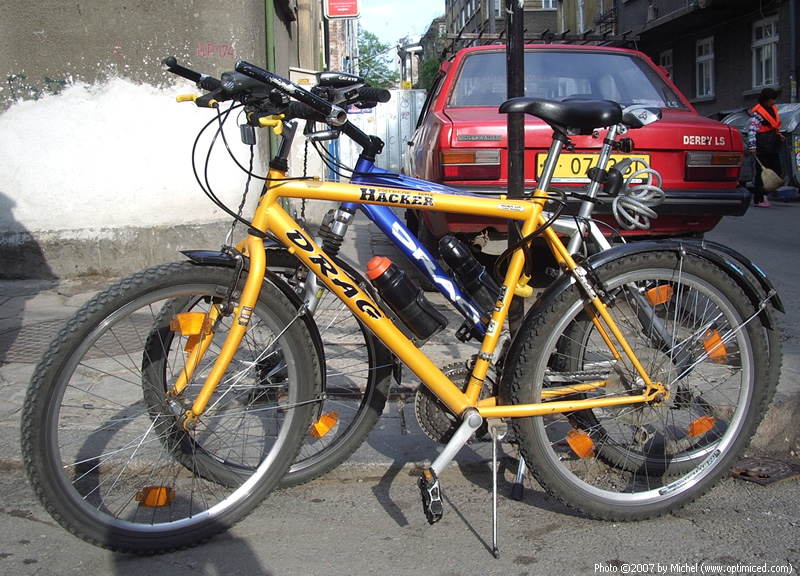
Our bicycles

I am not talking here about the bicycle as leisure or doing things like this (if you do things like this, you’ll have to search for tips somewhere else;-)

I’m talking about the bicycle as a transport in a big or small city.

I believe it’s one of the most effective means of transport, invented by humans till today.

It changed my life.

I am faster than a car, a bus, tram or even the underground.

I do not have to pay taxes, buy gas and oil, worry about expensive repairs and worry about finding a place to park my car.

In Amsterdam, which population is around 730’000 people, the preferred means of transport are the following: 35% – bicycle, 40% – cars, and 25% – public transportation system [source].

It means, around 250’000 people in this European city choose every day the bicycle.

It means, it is possible!

It’s more a question of personal choice.

And of wise municipal policy.

Would be nice if we, people, realise that small choices we make (like use a bicycle for transportation everyday), are worth much more than a thousand words in someone’s blog…

So stop reading (and writing) now, go buy a bicycle (if you didn’t yet do so), and start riding!

The Earth will be very grateful for this action of yours… :-)

And your co-citizens, too…

[note: 2007 image was removed from the servers of blogactionday.org so I replaced it with 2009 image…]