J. J. Cale, Sensitive Kind, and a sunny Saturday afternoon

Saturday, early afternoon.

It’s sunny outside.

The second cup of coffee is preparing (it’s my favourite Jacobs Monarch Classic), J.J. Cale’s Sensitive Kind is quietly playing on the Cambridge Soundworks 250D/S700, I lazily read friends’ blogs… That’s a good start of the day! :-)

[Flash player with embedded audio of JJ Cale, “Sensitive Kind”.]

J. J. Cale: Sensitive Kind

Don’t take her for granted, she has a hard time,
Don’t misunderstand her or play with her mind.

Treat her so gently, it will pay you in time,
You’ve got to know she’s the sensitive kind.

Tell her you love her, each and every night
And you will discover she will treat you right.

If you believe, I know you will find
There ain’t nothing like the sensitive kind.

She gets lonely waiting for you,
You are the only thing to help her through.

Don’t take her for granted, she has a hard time,
You’ve got to know she’s the sensitive kind.

Just a few more tracks with JJ, a bit more coffee with milk, and then I may switch to a more active mode, but for now, I like it this way! :-)

[Flash player with embedded audio of JJ Cale, “Don’t cry sister”.]

[Flash player with embedded audio of JJ Cale & Eric Clapton, “Three Little Girls”.]

The sun is smiling at me, I am smiling at the sun… :)

As to JJ Cale — he’s a discovery of Ani and batpep — he was a teacher of Eric Clapton, and I can say only this — great music! In fact, I wonder, how did he not become more famous than Eric C.?;-) (You can find more of J.J.’s recordings on youtube.com…)

Firefox 3.0/3.5 doesn’t warn when closing multiple tabs (a solution)

If you have this problem:

1) You have set the option in Mozilla Firefox to open all of your tabs automatically, each time the browser starts,
2) You do not see the warning “You are about to close n tabs. Are you sure you want to continue?” when you try to close the Firefox window (intentionally or by accident), and
3) You do not want Firefox 3.0 to ask you each time you close it, if you like to save or not save your browsing session, but save the session automatically,

…then you can jump straight to the solution!

But if you are curious about the details, you may continue to read below! :-)

A short introduction

Firefox 3 is by far the best browser I know!

It is secure, it supports Web standards and CSS 2.1 (and now, CSS 3, too!), it is fun to use, it has a built-in Session Saver (when you close Firefox with all of your opened tabs, it can re-open them next time you start it), and there are a variety of very useful add-ons (extensions) made for it, which extend its functionality and make it even better!

(NOTE: Firefox 3.5 was released on June 30th, 2009, but I will wait maybe a couple of more weeks, before upgrading to it, because still some very useful add-ons for Firefox 3.0 are not yet upgraded to be compatible with version 3.5.)

When I made the switch from Firefox 2.0 to Firefox 3.0, one thing puzzled me, though: the standard warning, when you close a Firefox window with more than 2 tabs open — it has disappeared… well, in a way, at least!
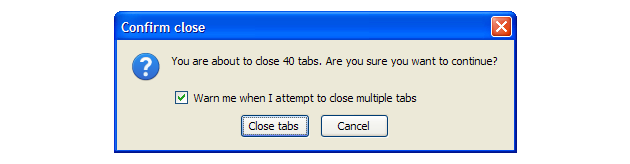
Firefox close all tabs warning

Firefox 2.0 » Firefox 3.0

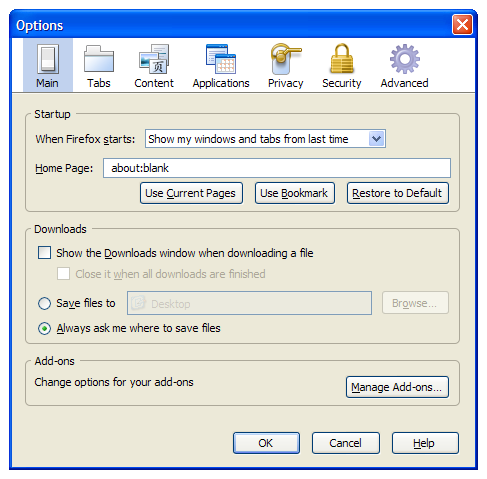
As you (probably) know, Firefox can automatically save your browsing session, when you close it. This means, when you close the Firefox window, all tabs that you have open inside it, will be re-opened next time you start it again. This is controlled via an option, found in Tools > Options > Main > Startup: “When Firefox starts: Show my windows & tabs from last time” [screenshot].

So, in Options, if you select “When Firefox starts: Show my windows & tabs from last time”, you can safely close Firefox, and next time it starts, it will restore your browsing session — for this to work, though, you must have all tabs opened inside one window, or else, only the last window that you have closed will have its tabs re-opened on next startup.

You can also decide if you want your tabs re-opened, each time you close the Firefox window. In this case, you can de-select “When Firefox starts: Show my windows & tabs from last time” and instead, choose “Show a blank page”. Then Firefox 3 will ask each time you try to close it, what do you prefer: your session saved, or not.

But if you’re like me, then you may prefer all opened tabs to be saved automatically, and without any questions upon closing Firefox. In this case, you will select “When Firefox starts: Show my windows & tabs from last time” in Options and the dialog “Save and Quit?”, “Quit?”, “Cancel?” will not be shown when you close the Firefox window.

There’s one problem, though.

Firefox 3.0 will not warn you when you close a window with multiple tabs!

Well, this is not exactly true. It will not warn you, when several conditions are met:

1) In Tools > Options > Main > Startup, you must specify the option “When Firefox starts: Show my windows & tabs from last time” (this is pretty common, especially for people who upgraded from Firefox 1.5/2.0 > 3.0, because most users prefer to re-open all tabs automatically, when they start Firefox), and…

2) You are closing the last open window of Firefox. (I prefer have all of my tabs opened inside one window — thus, when I close Firefox, all my tabs inside this window will be re-opened. But let’s suppose, you have two windows open, inside each window there are several tabs. When you try to close the first window, Firefox will warn you. When you try to close the second one, it will not warn you.)

The strangest thing is that the warning “You are about to close n tabs. Are you sure you want to continue?” will not appear, in this case, no matter what is the setting that you have specified in Tools > Options > Tabs > “Warn me when closing multiple tabs” [screenshot]!

In Firefox 2.0, when you try to close a window with multiple tabs open, and if you have checked the option in Tools > Options > Tabs > “Warn me when closing multiple tabs”, Firefox will always warn you, before you close the window, no matter if the window you are about to close is the last (and only one), or if you have set the option in Tools > Options > Main > Startup: “When Firefox starts: Show my windows & tabs from last time”.

In Firefox 3.0, when you try to close a window with multiple tabs open, and if you have checked the option in Tools > Options > Tabs > “Warn me when closing multiple tabs”, Firefox will warn you, before you close the window, only if you have specified “Open my home page” or “Open a blank page” in Tools > Options > Main > When Firefox starts (it will present you with the dialog “Save & Quit”, “Quit”, “Cancel”)… But if you have specified there “When Firefox starts: Show my windows & tabs from last time”, then Firefox will not warn you, but will silently close all tabs!

And this is intentional (as of Firefox version 3.0), because, as far as I know, there were several bugs logged in this regard (including bug 419009, “Warning if closing multiple tabs is not working”), but the functionality remained the same! If the user has specified “When Firefox starts: Show my windows & tabs from last time”, then, when closing Firefox, all of his tabs will be automatically restored, and there’s no data loss. But the user might close Firefox by accident, and in this case, there’s no way for him to be warned! And the option “Warn me when closing multiple tabs” was supposed (in Firefox 2.0) to fix just that: accidental closing of all of your opened tabs! But it’s gone in Firefox 3.0: now you can’t be warned before you close Firefox, if you have specified all of your tabs to be restored automatically, when Firefox starts!

Some claim that there’s an easy “fix” for this: The user is supposed to select “Show my home page” or “Show a blank page” in Tools > Options > Main > Startup, but in this case, Firefox will ask each time it is closed, if you want or do not want to save all of your tabs! (And this is something I don’t need — I want Firefox to open all of my tabs automatically, without asking!) Also, in this case, you might also accidentally click the wrong choice and have your session deleted (if you select “Quit” instead of “Save and Quit”).

I have searched for a true workaround for a long time. I wanted:

1) Firefox to automatically save all of my tabs & re-open them next time it starts, inside one window, and
2) I wanted to be warned, when I try to close the Firefox window.

I think I have found a very good (almost perfect)…

Solution to the problem

You will need to install one Firefox add-on first — “Tab Mix Plus”; it currently works for Firefox 3.0/3.5, and can be downloaded from here:

https://addons.mozilla.org/en-US/firefox/addon/1122

I will also recommend you to install the “Session Manager” addon, which works for FF 3.0/3.5:

https://addons.mozilla.org/en-US/firefox/addon/2324

(Session Manager will complement the other add-on pretty well, but this step is not required.)

In Tab Mix Plus, there’s an option which can restore the default behaviour of Firefox, when you try to close it!

To activate it in Firefox, go to Tools > Tab Mix Plus Options > Events > Tab Closing > “Warn me when closing multiple tabs”. If you check this option, then Firefox 3 will act as before: If you have multiple tabs open, and try to close the Firefox window, it’ll show you the standard warning “You are about to close n tabs. Are you sure you want to continue?”.

And you’ll see the warning, even if in Tools > Options > Main > Startup: “When Firefox starts: Show my windows & tabs from last time” is set!

That’s it! :-)

Final notes

— In Firefox options, I have set Firefox to remember my opened tabs session automatically, when I close Firefox. I open all tabs inside one window, so for me this option works very well: If I try to close the window with all opened tabs, Firefox now gives me a warning, as I expect. If I try to close the window by accident, I can click on ‘Cancel’ and if I really want to close it, then I select ‘Close Tabs’ and next time Firefox opens, all of my tabs are restored!

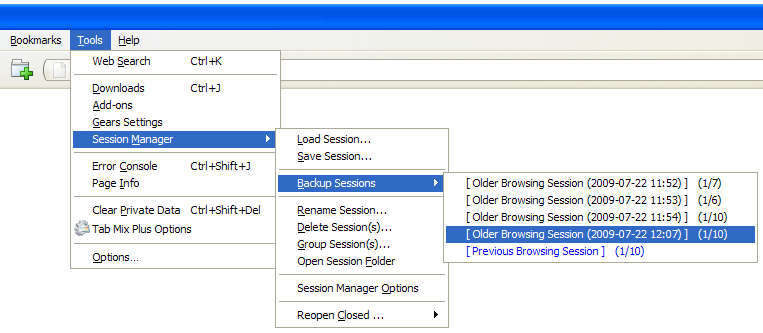
— For added “extra security”, I have also installed Session Manager add-on (see download link above). So in the rare case that I will close one Firefox window with some tabs open and then will see that in the background, there was one more window open (this may happen sometimes), I can still recover my session with all opened tabs, using the Session Manager — I can simply revert then to a previous backup session, using Tools > Session Manager > Backup Sessions [screenshot].

— I have tested this on Windows XP SP3, Firefox 3.0.12 and Tab Mix Plus 0.3.7.3, and it works as described. Only remember that Firefox will not give you a warning, if you try to close it using File > Exit (in this case it will silently close, but still reopen all of your tabs next time, if you have specified this in Options). But if you try to close Firefox window using the standard Windows shorcut (Alt+F4) or if you click on the close button on its window (top right), the warning will appear.

— I do not know what is the default behaviour of Firefox 3.5, when closing (and I did not test Tab Mix Plus with FF 3.5.x, too). I may update this article in the future, if needed. A reader just confirmed that the bug exists in Firefox 3.5.x, too (thanks, iffi!:-) and that the latest version of Tab Mix Plus fixes the bug in FF 3.5, as it does in FF 3.0. That’s good to know!

— Tab Mix Plus add-on has much more options, but I needed just the warning on closing multiple tabs; feel free to explore all of its other features, though! :-)

I hope this information will be useful to other Firefox users, too!

Also, feel free to leave any comments and notes you may have — I always appreciate constructive feedback and discussion!

UPDATE (2009/08/08): I can confirm that this fix works with latest Firefox 3 (3.0.13) and Firefox 3.5 (3.5.2).


Grass and Sun…

One of my favourite things to shoot, during Summer…

grass & sun

The photo is from July 13th, near Borissov’s Garden… we were on some sort of photowalk, but no shot of mine turned out to be good, with the exception of this one, maybe… :)

(Here’s a variant, with a bit of sharpening applied…)

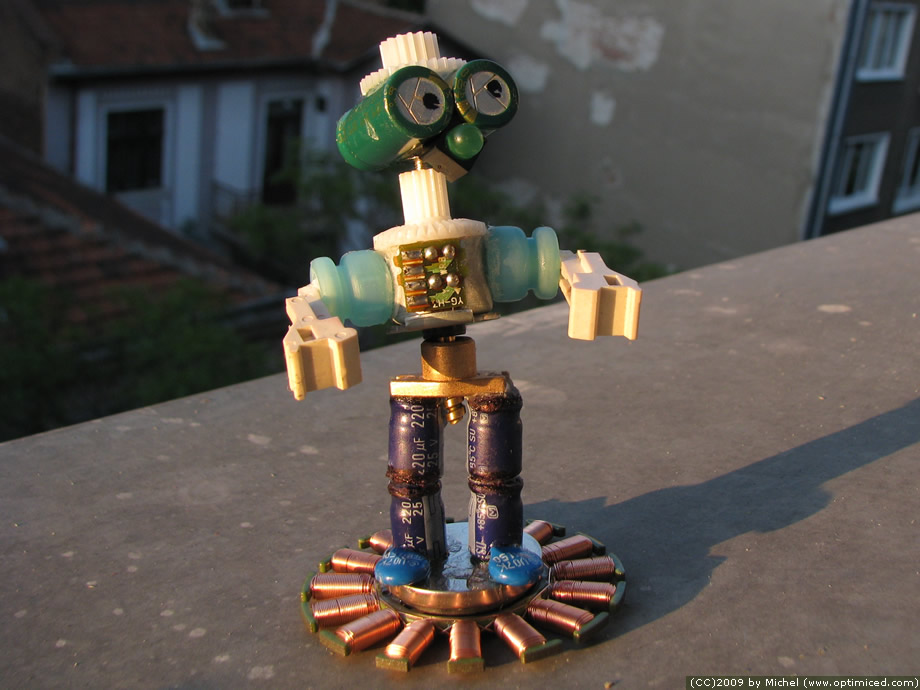
Robots made from an Intel Pentium II computer

intel insideA very good friend of ours had a birthday last Sunday (yes, the guy who is behind Digital Day).

We wondered what gift to invent for him. We wanted the gift to be original, technological, funny, and, if possible, geeky.

Well, Ani had a bright idea! We must make a… robot from old computer parts!

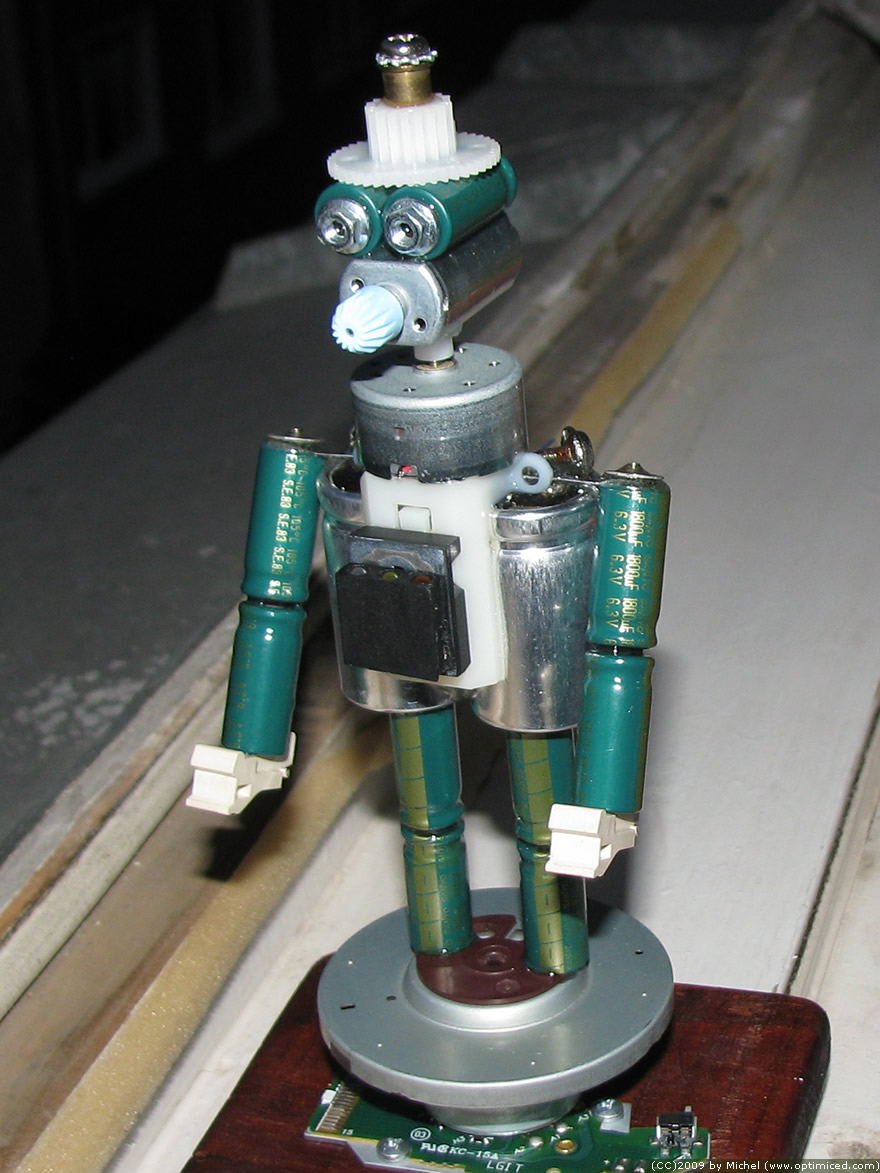
We disasembled an old Pentium II based computer (and old “Fujitsu”, which was lying around for ages, and didn’t work at all), and 8 hours of hard work later, one two robots were born.

The smaller one was Ani’s personal invention (he is now standing proudly in one corner of our room, btw.)

Robi2

“Robi 2” was nice, had cute little head and curious, questioning gaze.

But his elder brother is the one that I’d like to present to you in more detail (that was the one which we gave as present to our friend).

T1000

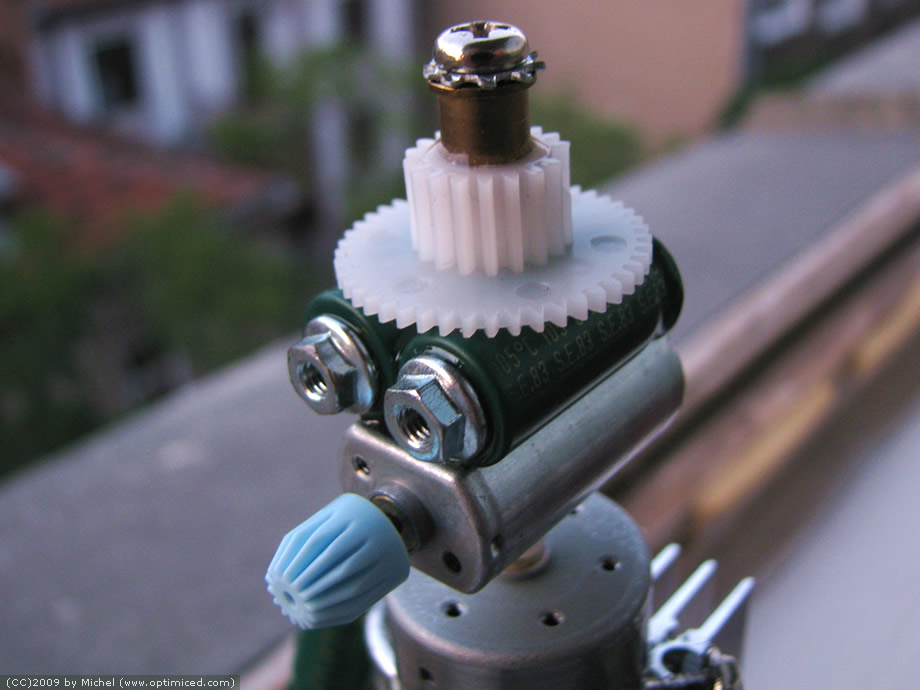
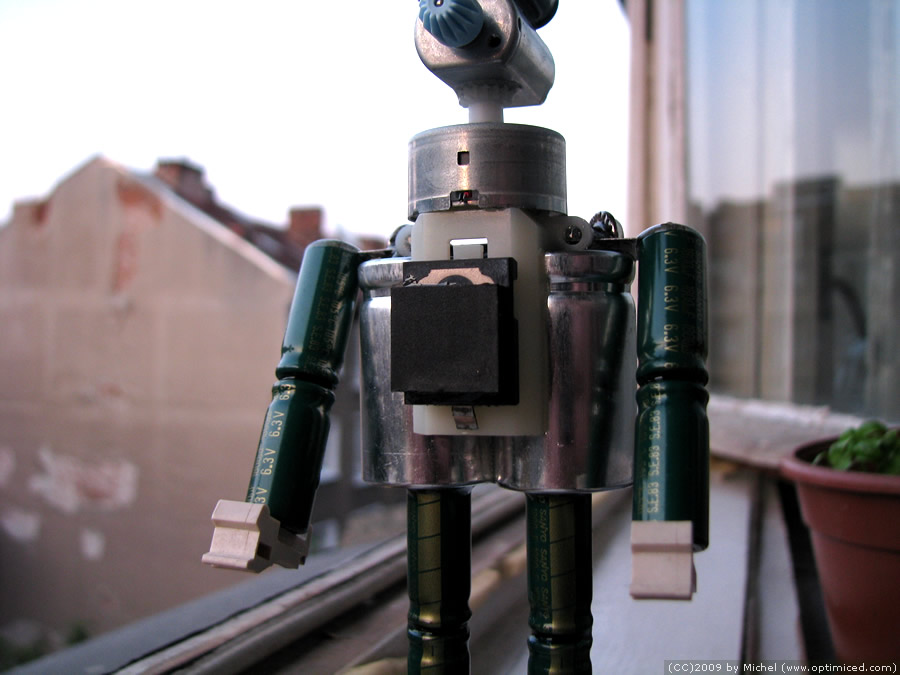
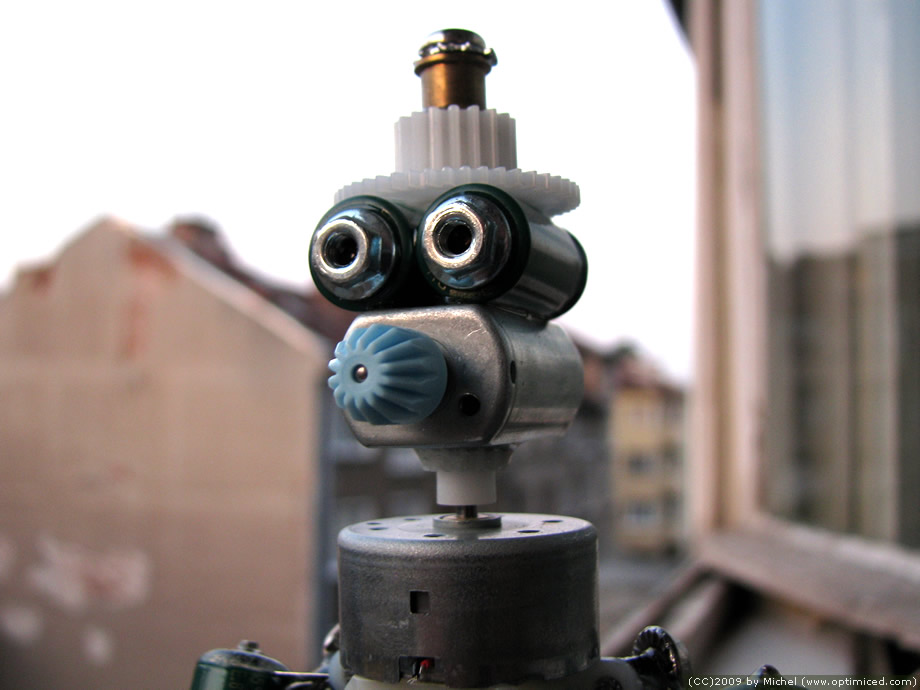
He’s name is VKDE-T1000/Y2009.

Here are a few photographs:

T1000

T1000

T1000

T1000

T1000

T1000

If you look closely at the details in the photos, you’ll probably recognize common computers parts, such as:

  • a lot of electric capacitors, removed from the Pentium II motherboard,
  • parts of a 1.44″ floppy drive,
  • parts of a standard CD-ROM,
  • a few motors, including a CD-ROM tray motor, CD-ROM motor for moving the laser beam, and a few others,
  • LEDs which indicate ‘ON’, ‘Stand-By’, ‘HDD activity’,
  • cam-gear wheels,
  • large power supply capacitors,
  • a small heatsink which was cooling some microchip on the motherboard,
  • RAM modules holders,
  • etc.

Most of the parts were glued together with epoxy resin. The design of the robot is the result of our combined efforts. And if you’d like to know more details, I would gladly answer your questions here!

As a final note, I’d like to add that the base of the robot rotates 360 degrees, his head, too, as well as his nose, and that at the tip of his head, where the hat ends, you can screw in some optional accessories via a standard screw:-)

And you can also remove the robot from his rotating base, as it is kept there by the force of a hidden 1.44 Floppy magnet!

The VKDE-T1000 is the only existing prototype for now, and he is unique in the whole world, but who knows? If we can get hold of more old Pentium II computers in the future, maybe we’ll be able to create a few brothers and sisters for him? ;-)

W3C HTML icons (by Veerle Pieters), PNG+alpha

I wrote recently about some very nice HTML icons which Veerle Pieters created and released for free.

W3C HTML icon from Veerle, PNG

Unfortunately, the icons were in JPG format, which restricted their possible uses (they were also released in MacOS icon type, but this format cannot be used in the Web, obviously).

To my deligh, after a few commenters (including myself;-) asked for a PNG+alpha version, Veerle most happily shared it with us, too! :-)

You can download the icons from her website and/or from here (the distribution of the icons is absolutely free and unlimited, as well as their use):

download all icons in one ZIP archive, PNG+alpha

Cool! :-)

Jimmy Wales in Sofia, Bulgaria (full video)

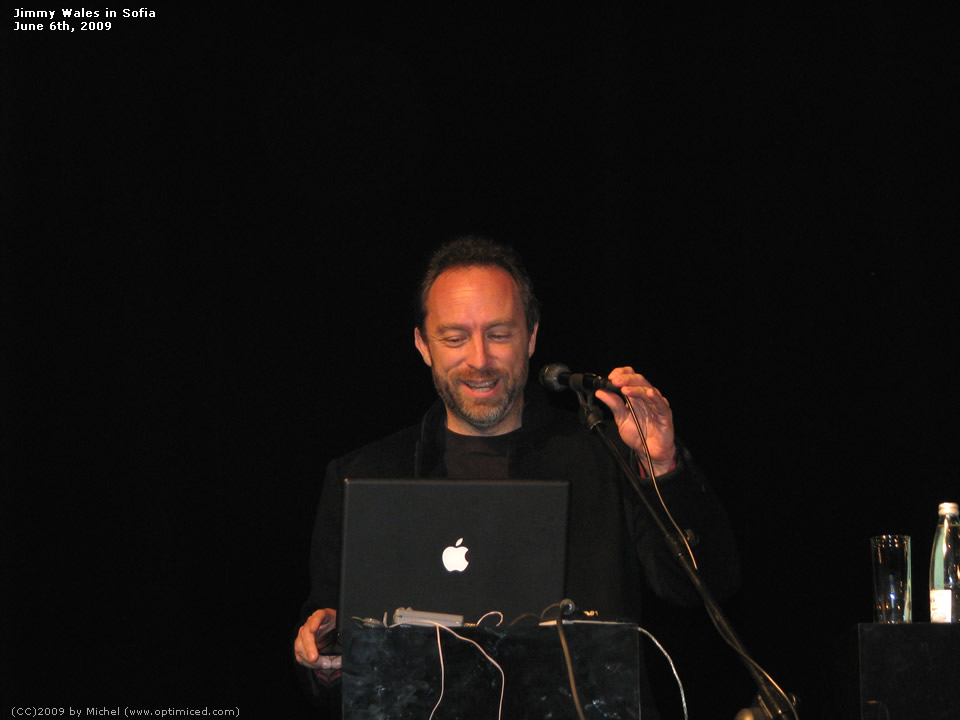
On June 6th, I was lucky to listen ‘live’ to Jimmy Wales — the guy who invented Wikipedia. Jimmy (or ‘Jimbo’, as he prefers to be called himself) has a personal blog and… (of course!) a page in Wikipedia;-)

I was able to record almost everything on video, and now, finally, I’ve succeeded in encoding & uploading the files…

Here they are!

Part 1 (~35 minutes):

[Flash player with embedded video of Jimmy Wales, Sofia, June 6th 2009 (#01)]

Part 2 (~45 minutes):

[Flash player with embedded video of Jimmy Wales, Sofia, June 6th 2009 (#02)]

Part 3 (~20 minutes):

[Flash player with embedded video of Jimmy Wales, Sofia, June 6th 2009 (#03)]

* * *

Now, if you’re curious, here are some notes:

1) The total length of the videos is around 100 minutes. They’re split in three parts: Part #1 (~35 minutes), Part #2 (~45 minutes), Part #3 (~20 minutes).

2) These 100 minutes of video are un-edited and show the presentation of Jimmy Wales almost in full — actually, maybe only half a minute of video is missing…

3) I have started the recoding a couple of seconds after Jimmy came to the stage of the theater and started speaking. I’ve ended it right after he left. During the recoding, I had to change the batteries (and the 8 GB SDHC card) once, just in case, which is exactly where the pause between videos #1 and #2 is. This pause was not longer than 15-20 seconds. Then, there was another pause (between videos #2 and #3), but it was less than 2 seconds. Also, during recording, I made maybe 2-3 photos, which are the cause for a couple of less-than-a-second interruptions, and that’s all. Apart from that, the video is completely un-cut.

4) The presentation of Jimmy was 40 minutes long + there were 60 additional minutes, filled with questions & answers. So, what you’re about to see is:

#1 (35 minutes): the presentation of Jimmy Wales (it continues on video #2);
#2 (45 minutes): the first 4 minutes are the end of his presentation — after that, the questions’ part begins;
#3 (20 minutes): the questions’ part continues, and then the evening is over and Jimmy is leaving.

(I am not that good with editing video, so I was unable to merge all there videos into one, but this is not that important, I hope:)

5) Original videos were in very good quality — .AVI format, 640 x 480 px, approx. 16 Mbps (video+audio streams), with stereo sound. I re-encoded them to .f4v format and brought them down to less than 2 Mbps, while the quality of the video/audio remained almost unchanged.

6) Encoding was made using Adobe Flash Media Encoder CS4: approx. 1.3-1.8 Mbps H.264 video and 128 kbps AAC2 audio. The player I am using here to embed them is JW FLV Player, which does a great work.

6) You’ll need a relatively new computer (Pentium 4 or better will do well) + high speed Internet connection, to be able to watch them normally (over 1 Mbps speed is recommended). If your Internet connection is slow (and there are interruptions), start the first video, and put in on ‘pause’ for a few minutes. This will allow the player to cache some part of the video stream and then you’ll be able to watch it normally. Then proceed the same with the other two videos.

7) The videos are not perfect — sometimes the camera may lose focus for a second or two, for example, or measure the light incorrectly. Also, note that most of the time I have focused the camera on Jimmy (and not on his slides) — in my defense I can only say that usually, if I did not shift focus to the presentation screen, then the things on the screen were simply the same things that Jimmy said, so I preferred to focus on the lecturer instead;-)

8) The License:

I am releasing these videos under CC-BY-SA license, which is one of the most liberal Creative Commons licenses. It allows you even the commercial use of the videos, as long as you mention me as their author + put link to www.optimiced.com (plus, optionally, to this particular page).

It’s also a good idea to link to the CC license I have used, and/or clearly specify that you are re-distributing them under the same conditions.

9) If you want to re-distribute the videos online:

Here are direct links to the files, which you may download and then upload to your own web server:

mvi_4143_jimmy_wales_part1.f4v (~ 362 MB)
mvi_4148_jimmy_wales_part2.f4v (~ 456 MB)
mvi_4149_jimmy_wales_part3.f4v (~ 210 MB)

After that, you’ll need some kind of FLV/F4V Flash player, to embed them in your own website.

For watching the videos offline, the excellent FLV Player will do a great job (works on Windows XP/Vista; if you are a Mac/Linux user, you’ll have to search for yourself, but I am sure you have a solution handy).

10) There is no 10! :-D …Actually, there is — please, re-tweet & re-blog the videos, as I am sure that they’ll be interesting to a lot of people! :)

I hope you will enjoy the videos, too! :-)

Jimmy Wales in Sofia, Bulgaria

Today (or rather, yesterday, as it is 3 am now;-) I was on a very interesting presentation by Jimmy Donal “Jimbo” Wales. For those who maybe don’t know — this is the man behind Wikipedia project, the world’s largest encyclopedia! ;-)

Jimmy Wales (wikipedia.org)

The man who invented Wikipedia, made his presentation in a fascinating way!

The presentation itself was a bit longer than half an hour, but a lot of questions ensued, so the event passed between 18:00 до and 20:00.

I was able to record almost everything on video, and I’ll try to put it online in a few hours (I hope I’ll be able to, as this is the first time that I try to encode and upload such large video files).

Stay tuned! :)

New W3C HTML icons (from Veerle)

Veerle just released a set of great looking HTML icons:

W3C HTML icon from Veerle, variant 1

W3C HTML icon from Veerle, variant 2

W3C HTML icon from Veerle, variant 3

W3C HTML icon from Veerle, variant 4

If you are a Mac user (and Web designer), then you maybe use the Markup Validator S.A.C. — this app is a stand-alone version of the W3C Markup Validator. The new icons from Veerle could replace the default icon of this application in your MacOS X dock.

the icons (compared)On the left you can see the current icon of the Markup Validator S.A.C. You may compare it with the variants that Veerle has made. Personally, I like her design of the icons much more! :-)

Plus, she is releasing the icon set for free to the community!

Unfortunately, the icon set is available for Mac users only. It’s a pity, because I think that these icons could be used in many more ways… Of course, you can use the JPG variants (which are high quality), but without the optional alpha transparency, which is available in the PNG format only…

If you want to use any of the icons on MacOS X, a link for download is available in the Veerle’s blog post:

http://veerle.duoh.com/blog/comments/a_new_icon_for_markup_validator_s.a.c/

(There you will also find instructions, how you can change the icon of Markup Validator S.A.C. in the dock of MacOS X.)

As to the JPG variants, you can copy them manually from Veerle’s blog, or download them as one ZIP file, which I made for my own convenience (as the icons are released for free):

download all icons in one ZIP archive, JPG format

Finally, what can I say? Another great design from Veerle! :-)

[UPDATE] Same icons, but in PNG+alpha file format. Cool! :)